
Archie — AI-Powered Archiving & Appraisal App for Personal Collections
Background
Through DesignLab’s AI for UX Design program, I explored prompt engineering, generative prototyping, and ethical AI practices. I then put those skills into action by creating Archie—Archie leverages deep-learning vision and NLP to map an object’s history, metadata, and personal anecdotes into a beautifully seamless, story-first interface. It's like a modern “show and tell” experience powered by AI.
Responsibilities
AI Product Design
Outcome
My workflow is now 3x faster, thanks to an upgraded toolkit.

Designlab: AI for UX Design
Designlab is an intensive, mentor-led UX academy that combines expert instruction with real-world projects. In the AI for UX Design class, I learned how to craft effective prompts, integrate generative prototyping into my workflow, and apply ethical AI principles to design challenges.

AI Design & Coding Tools
In today’s rapidly evolving landscape, there are countless AI tools vying for attention, and only by carving out dedicated “playtime” can you truly understand their strengths and limitations. This case study demonstrates my learning from the time I've dedicated to exploring AI for UX Design. I used this suite of AI tools throughout this case study:
ChatGPT (“UX Research & Design.ai”)
Developed by Rose Beverly and trained on over 10,000 case studies, this specialized ChatGPT instance served as my primary UX partner—writing scripts, synthesizing best practices, generating personas, and guiding research frameworks.
Claude
A chat tool that is great at wireframing.
Perplexity
A powerful AI research assistant that I used to gather historical context and provenance for photographed objects, surfacing primary sources and records.
Figma Make
The prototyping tool I chose for prototyping, despite running into asset and stability limits as complexity grew.
Lovable.dev
A development tool I used to prototype, enabling the creation of production-ready apps and websites simply by chatting natural-language prompts—no coding required.
Uizard
An AI-powered tool that rapidly transforms wireframes into high-fidelity, editable screens without any hand-coding.
UX Pilot
An AI-assisted platform that converts hand-drawn sketches and wireframes into polished UI mockups.
Google Stitch
A design tool that automatically generates fully editable UI screens you can copy and paste straight into Figma, accelerating high-fidelity prototyping.
Cursor
A vibe coding tool
Gamma.app
For creating polished, data-driven presentation decks that communicated research findings and design decisions.
Midjourney
Generated concept imagery, persona images and icon ideas—for moodboarding and visual exploration.
Mermaid
Flowcharts of user journeys and decision trees, keeping technical and design teams aligned.
Discovery with AI
Project Challenge:
Design an AI-powered app to uncover stories behind personal objects
Why I chose Archie
I wanted my project to stem from something I genuinely cared about, so I brainstormed ideas ranging from an emotional-support animal feature for a pet adoption app to an AI mediator for shared-property disputes, a Tony Awards tracker, and an antique appraisal tool. In the end, I chose the appraisal direction—now Archie—because it combined my passion for storytelling with the biggest “wow” factor in using AI to reveal surprising histories behind everyday objects.

My collecting hobby began with my grandpa's old coin collection. This was his 1847 Liberty Head coin.
Researching the Market with AI
Generative AI can streamline market research by rapidly aggregating and synthesizing data to estimate market size and benchmark competing feature sets. I leveraged Perplexity to size the target market and compare key product capabilities—an analysis that took about one hour instead of days without AI. Then I imported those insights into Gamma.app to craft a polished, data-driven presentation deck.


Gamma.app turns your data into polished, presentation decks right in front of your eyes.
Prompt Engineering Personas
I prompted ChatGPT to sketch provisional personas—from meticulous historians to tech-shy archivists—to capture initial user types. These profiles distilled hypotheses about motivations, pain points, and potential delight points. Though based on assumptions, they served as a crucial starting point for uncovering blind spots before deeper research.

This is one of my shorter Chat GPT prompts.
Addressing Bias
I audit AI-generated personas for bias because models often reflect the overrepresented cultures, demographics, and stereotypes found in their training data. Unchecked bias can lead to design decisions that exclude or alienate underrepresented users, undermining both inclusivity and market reach. By challenging and refining these personas, I uncovered blind spots and ensured the solutions address real-world needs across diverse contexts. Ultimately, bias-checked personas help create more equitable, user-centered products that serve everyone effectively.

Engage users outside the typical demographic spectrum to ensure your product truly meets real-world needs.
Prompting Research Scripts
I leveraged ChatGPT to craft a user research script with the prompt:
“Based on the six personas (attached), act as a senior product designer and generate a script to understand the problem space, identify and validate target users, surface opportunities, reduce risk, and guide product direction.”

Make sure to hand edit your script to ensure quality data.
Simulating User Research
I then fed the research script and the six detailed personas into ChatGPT to simulate user interviews. By role-playing as each persona, the model walked through the questions, revealing diverse perspectives, uncovering edge-case needs, and validating assumptions—all in a matter of minutes.

AI-Driven Insights Synthesis
I fed the AI-generated interview transcripts into Chatgpt to rapidly synthesize key themes, affinity clusters, and opportunity areas across the six personas. With those distilled insights in hand, I imported the results into Gamma’s AI-powered presentation builder to create a polished, data-driven deck—complete with visuals and quotes—in a fraction of the usual time.
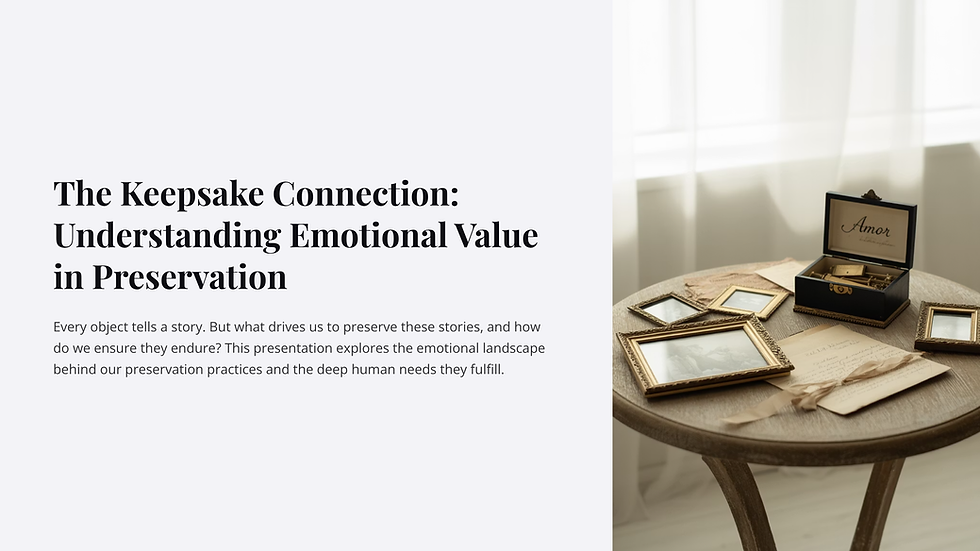


I was amazed at the level of detail and thought provoking responses from the simulated users.
Following Up: Selling on the platform
One of the beauties of using AI for research is the ability to run follow up studies immedietly and often. I was exploring monetization options so I ran a follow-up study to understand how users felt about selling or rehoming. The research uncovered two clear camps: some participants would only part with objects if buyers truly honored their stories, while others refused to sell altogether to protect emotional and cultural integrity. Given this divide and the potential for eroding trust, I ultimately decided to drop direct sales and instead pursue a sponsored-items model that better aligns with our community’s values.

Follow-up research revealed split attitudes on selling cherished items, so I pivoted to sponsored items instead.
Working with an AI Team
Finding my team
The AI for UX Design course did not touch on this topic--it was assumed you had a team to work with. However, I experimented by creating a product team of 5 personas with the expertise I was looking for. I found their perspectives to be invaluable.

Persona of one of my 5 team members.
Design Principles
I used ChatGPT’s “UX Research & Design.ai” toolkit to draft a set of design principles—feeding it insights from my five professional personas (the Accessibility Advocate, Social UX Lead, Scalable Tools Champion, Go-to-Market Strategist, and Mission-Driven Investor). Their distinct voices helped shape guidelines like “Story First, Not Stuff,” “Respect the Vibe,” and “Suggest, Don’t Flatten,” ensuring our AI-powered archive assistant honors emotional context, offers granular control, and remains inclusive and communal—never transactional.


Principles put personal stories first, respect emotion, empower user control, and foster inclusive, community-driven experiences.
How Might We's
These six “How Might We” prompts distilled the core challenges—preserving personal and cultural stories, empowering meaningful sharing, and ensuring flexible access—into clear opportunities for design solutions.

This slide presents six “How Might We” prompts that I will use to brainstorm ideas.
Brainstorming with ChatGPT
Next I fed all the ideas into ChatGPT and synthesized the ideas.

Synthesized ideas across all How Might We brainstorm results.
Voting as a Simulated Team
Byfeeding in the 5 team personas, I was able to narrow down the ideas into the most frequently selected. For prototyping, I decided to move forward with Effortless Item Capture, Voice-Driven Storytelling and Provenance Story cards.

A snapshot of the five top user-chosen features for seamless capture, rich storytelling, provenance insights, community engagement, and granular sharing control.
Journey Mapping
I picked one of my user personas and generated a user journey map.

A screenshot from ChatGPT's Journey Map output.
Task Flows
Then I asked ChatGPT to generate a prompt that I could use with Mermaid to create a flowchart of the experience.

A beautiful flowchart created by Mermaid with a simple text prompt.
Experimenting with AX UI Tools
Overview of AI UX Prototyping Tools
I spent about 15 minutes on each of five UX AI platforms—Figma Make, Lovable, Google Stitch, UX Pilot and Uizard—feeding them the same “Upload Item” flow prompt (tailored in style and format for each tool) to determine their usefulness at this stage.
Figma Make
I was genuinely impressed by how quickly Figma Make spun up a fully interactive prototype. The tool translated my ChatGPT generated specifications into working screens complete with navigation, interactive buttons, and micronteractions—so I could click through the entire flow from dashboard to confirmation in minutes.
However, because Figma Make outputs everything as code-defined components rather than traditional Figma layers, I ran into a significant limitation: I couldn’t tweak the generated screens directly within Figma’s design editor. Any edits require new versions which take significant time to run.
My 15 minutes with Figma Make was so cool.
Lovable
I’ve experimented with Lovable on a personal side project in the past and appreciated its ability to turn text prompts into usable frontend and backend code—but I found the UI generated to be somewhat clunky and hard to navigate. If time allows, though, I’d leverage Lovable to rapidly spin up a “works-like” prototype for Archie’s storytelling feature: simply upload an image of an object and let AI generate a draft narrative, complete with editable text and layout, so I can validate the core interaction with real users.
My 15 min with Lovable resulted in a nice functional experience.
Google Stitch
I’ve also explored Google Stitch before—it excels at producing clean Figma artboards you can copy-and-paste straight into your file, even if it doesn’t build out interactions or clickable flows. The downside is that its outputs often feel like generic templates rather than bespoke designs, so I usually end up restyling them heavily to match Archie’s brand voice. Still, Google Stitch is invaluable when I need to spin up a well-structured component or page layout in seconds, freeing me up to focus on custom visuals and interaction details.

Google Stitch is handy when you need a well-organized Figma frame that you can turn into something new.
Uizard (Pronounced Wizard)
When I reformatted my “Upload Item” prompt for Uizard and ran it through the platform, the generated screens were lacking—so much so that I kept second-guessing myself, thinking I must have done something wrong. Uizard excels at producing polished mockups, design systems, and code exports for teams ready to lock down pixel-perfect artboards, but its strict conventions and templated layouts clashed with my need for rapid ideation and creative flexibility. At this early stage, its heavier workflow feels more like overhead than an advantage—though perhaps I’ll loop back to it later when I’m ready to formalize styles.
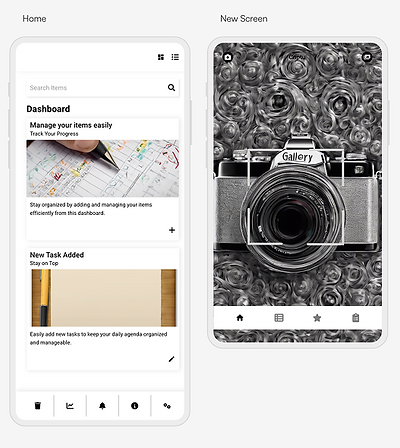
15 minutes was not enough time to learn how to benefit from Uizard.
UX Pilot
UX Pilot generated more useful, flexible screens than Uizard’s, but it still didn’t match the polish and delight of Figma Make.

UX Pilot felt more promising than Uizard in those initial 15 minutes.
Usability with AI Tools
Lo-Fi Prototyping with Figma Make
After seeing how delightful and useful my initial 15-minute Figma Make prototype was, I chose to double down and spent the next two hours refining it for usability testing. The platform made it a breeze to tweak layouts, copy, and interactions on the fly—resulting in 85 iterations with one to three targeted changes each. In this rapid wireframing stage, adjustments moved so fluidly that I could dial in spacing, button labels, and flow details until I was confident the prototype would yield clear, actionable insights in my usability sessions.
Usability studies
It's a similar process to run usability studies as it is to run user research interviews. First, I generated a task flow script for my LoFi Figma Make prototype. I've tried both connecting to the prototype link itself, and other times uploading screenshots. I have lower confidence in connecting the prototype itself since I always seem to get jarbled information that includes content from prior chat activity. However, I still found it vitally useful and would do it prior to real usability studies to iron out some of the details I might be overlooking.

Figma Make Lo-Fi Usability Test Results
This ten-slide report summarizes the simulated usability study of the Archie prototype, covering photo upload, story capture, tone and depth selection, and review/save flows. It highlights key pain points—deletion anxiety, unclear prompts, editing reassurance—and user patterns like the need for voice input and balanced storytelling. The report concludes with focused design recommendations such as delete confirmations, example prompts, static previews for tone/depth, and built-in accessibility checks.
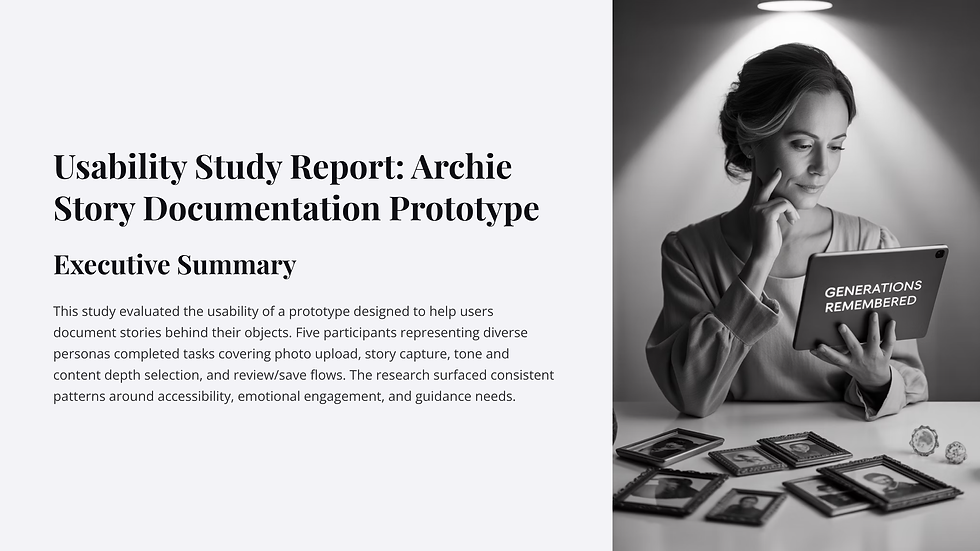


These slides present a simulated usability study of the Archie prototype, pinpointing user pain points, usage patterns, and actionable design improvements.
Figma Make Lo-Fi Prototype Team Feedback
This deck synthesizes the team’s observations into a prioritized design roadmap for Archie, centered on accessibility, emotional storytelling, and intuitive guidance. It outlines immediate high-impact enhancements—like streamlined delete confirmations and live transcription editing—and maps longer-term innovations such as dynamic content previews and on-device transcription to ensure each update meets real user needs.


I created this deck by feeding ChatGPT output directly into Gamma, distilling team feedback into a prioritized roadmap.
Figma Make Lo-Fi Prototype - update
As a follow up to the usability research, I went back into my Figma Make prototype and made one prompt to update the Tell Your Story screen based on the feedback.
"On the tell your story screen, I need the ability to see sample stories so I have an idea of what I want to write. I need to see prompts like "What does this mean to you?" so that the user knows where to start. The user needs to know immediately that they can edit their text before proceeding to the next step."
An update to the Tell your Story screen from one Figma Make prompt.
Making a Higher Fidelity Prototype in Make
Next, I decided to increase the fidelity of my lo-fi Figma Make prototype by importing handmade Figma frames directly into the Make environment. Almost immediately, I ran into stability issues: images would randomly disappear, and once I had more than a handful of screens, critical functionality began to break. What felt like a smooth path to a richer, standalone demo quickly turned into a landmine of disappearing assets and unpredictable behavior.
Ultimately, I realized that beyond the simulated voice-to-text interaction and the advantage of hosting a responsive web page without requiring loading Figma, Figma Make offered little over a standard high-fidelity prototype for my experiment. It wasn’t enough to outweigh the instability I encountered. It’s an intriguing platform—and I have much more to learn—I’m glad I had the chance to play with it. If you’d like to see it in action, check it out here: https://dried-plant-05071695.figma.site/
Here’s a video of the higher-fidelity prototype in action.
Prototyping Functional AI Products in Figma Make
This video is a functional prototype of Archie, built in Figma Make to demonstrate how designers can now prototype not just with AI, but AI-powered products themselves. Archie uses AI and voice-to-text to analyze an object, surface historical and collectible details, and weave a personal narrative into a formal appraisal.
The walkthrough shows how a photo of my Steiff teddy bear becomes a complete historical profile with expert commentary, AI-generated tags, and a provenance section that includes my voice-recorded story. This prototype illustrates the potential of integrating AI capabilities directly into the design process — enabling rapid, testable concepts for entirely new product categories.